Resume Format in PDF — Fill, Preview and Download
Recruiters prefer PDF resumes because they look the same on every phone and laptop. Instead of downloading a blank PDF and fighting to edit it, fill in your details online, see them in 10 designs, and save a ready PDF.
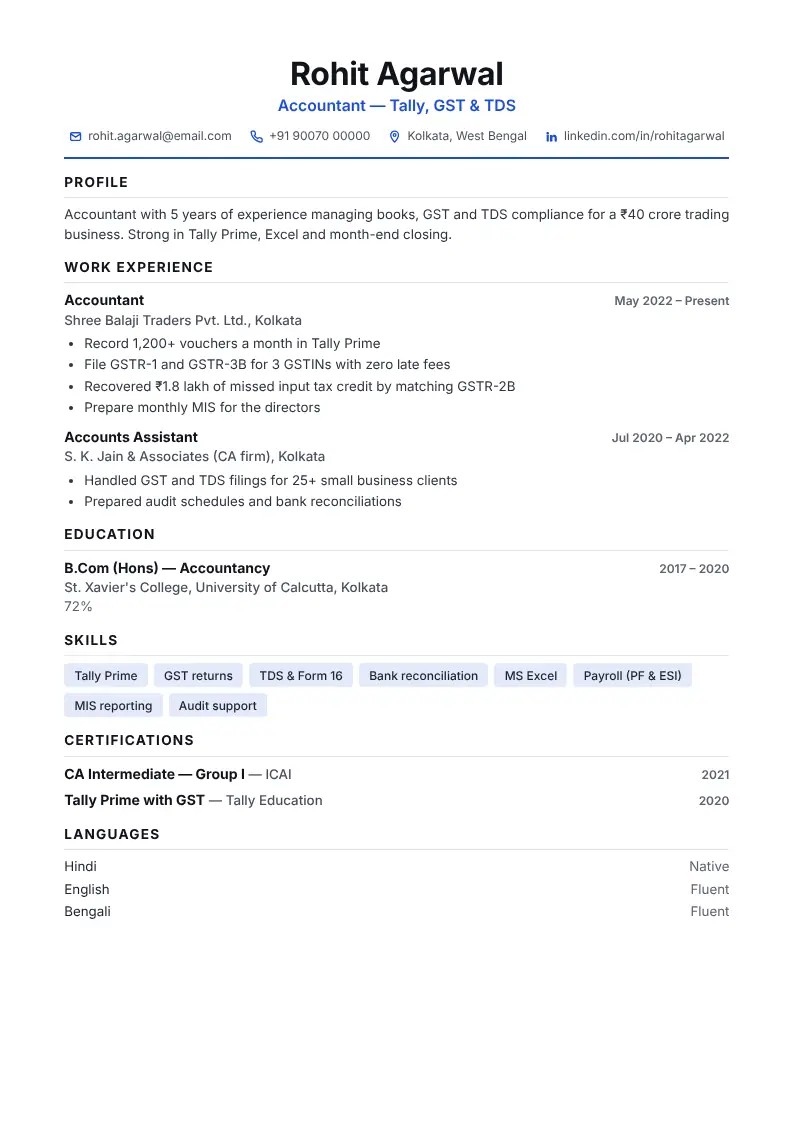
Format: section by section
- Step 1 — Fill your detailsContact, profile, experience, education, skills.
- Step 2 — Pick a designAll 10 designs update live as you type.
- Step 3 — Download PDFClick Download PDF and choose "Save as PDF" in the print window.
- Step 4 — Name the fileFirstname_Lastname_CV.pdf.
Why send your resume as a PDF
- The layout never shifts — fonts and spacing stay exactly as you designed.
- It opens on every phone, including WhatsApp previews.
- It cannot be accidentally edited.
- Most job portals and ATS systems read text-based PDFs well.
Getting a clean PDF from your browser
- Click Download PDF in the CV maker.
- Set Destination to Save as PDF.
- Keep paper size A4 and tick Background graphics so colours print.
- Untick Headers and footers.
- Save it as
Your_Name_CV.pdf.
When a PDF is not the right choice
Some recruiters and government portals ask for a Word file, and a few job forms only accept plain text. CV Dost can also download Word (.doc) and plain text versions of the same CV from the More menu.
Type once, see your CV in 10 designs
Open CV makerDownload as PDF, Word or image. Your details stay on your device.
Frequently asked questions
How do I download my resume as a PDF?
In the CV Dost maker, click Download PDF, choose "Save as PDF" as the destination, keep A4 and click Save.
Is a PDF resume ATS-friendly?
Yes, as long as the text is real text (not an image). CV Dost PDFs keep selectable text.
What should I name my resume PDF?
Use your name and "CV", e.g. Priya_Sharma_CV.pdf. Avoid names like "resume final new.pdf".
Why are colours missing in my PDF?
Tick "Background graphics" under More settings in the print window.